Manga mode — speech bubble detection and reading order | yomeru.ai
Use manga mode for comic pages with speech bubbles and sound effects. The AI reads right-to-left, handles furigana and stylized fonts automatically.
Use Manga mode for anything with speech bubbles: manga, doujinshi, fan comics, or any comic-style content where text appears in bubbles, narration boxes, and sound effects rather than as continuous prose.
What Manga Mode Handles
Our AI automatically detects speech bubbles, thought bubbles, narration boxes, and sound effect text on each page. It reads both vertical and horizontal text inside those regions, and it handles the stylized and decorative fonts that are common in manga. Furigana (reading guides above kanji) are detected and linked to their parent characters.
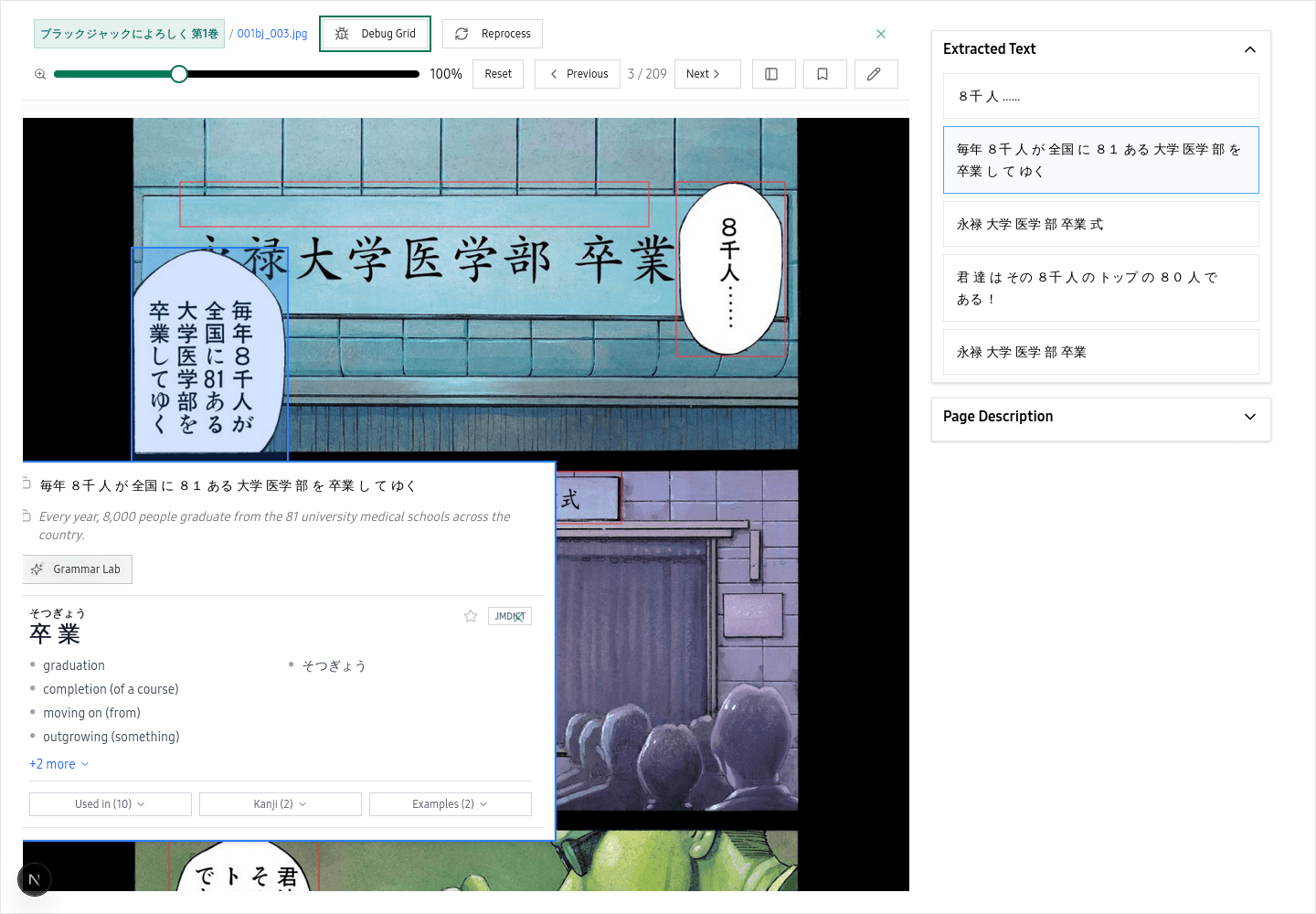 Speech bubbles, narration boxes, and sound effects are detected automatically and made interactive
For best results, use high-resolution scans
300+ DPI scans with good contrast consistently give the most accurate results. Avoid heavily compressed images -- JPEG artifacts can make it harder for the AI to distinguish characters.
Reading Order
Japanese manga reads right-to-left, and our system follows that convention. Text regions are ordered the way a native reader would encounter them, so clicking through the interactive overlay feels natural. You do not need to configure anything -- the reading direction is handled automatically.
Complex Pages
Double-page spreads work best when uploaded as a single combined image, though uploading each half separately also works. In action-heavy scenes with lots of stylized sound effects, dialogue bubbles are prioritized for extraction. Sound effects may have slightly lower accuracy, but the words that matter most for reading comprehension are captured first.
When Not to Use Manga Mode
If your content is a scanned light novel, textbook, or any page of continuous prose without speech bubbles, use Novel mode instead. Novel mode is designed for dense text layouts and will produce better results on that type of content.
If you accidentally upload with the wrong mode, you can reprocess the page for free -- see Reprocessing Content.
Related Pages
How Japanese OCR works — detect, extract, analyze | yomeru.ai
Detect text regions, extract kanji and kana with a Japanese-trained AI model, analyze every word for readings — all in 10–30 seconds per page.
Novel mode — OCR for light novels and prose | yomeru.ai
Use novel mode for scanned light novels, textbooks, and documents. Handles vertical text (tategaki), horizontal text, multi-column layouts, and furigana.